
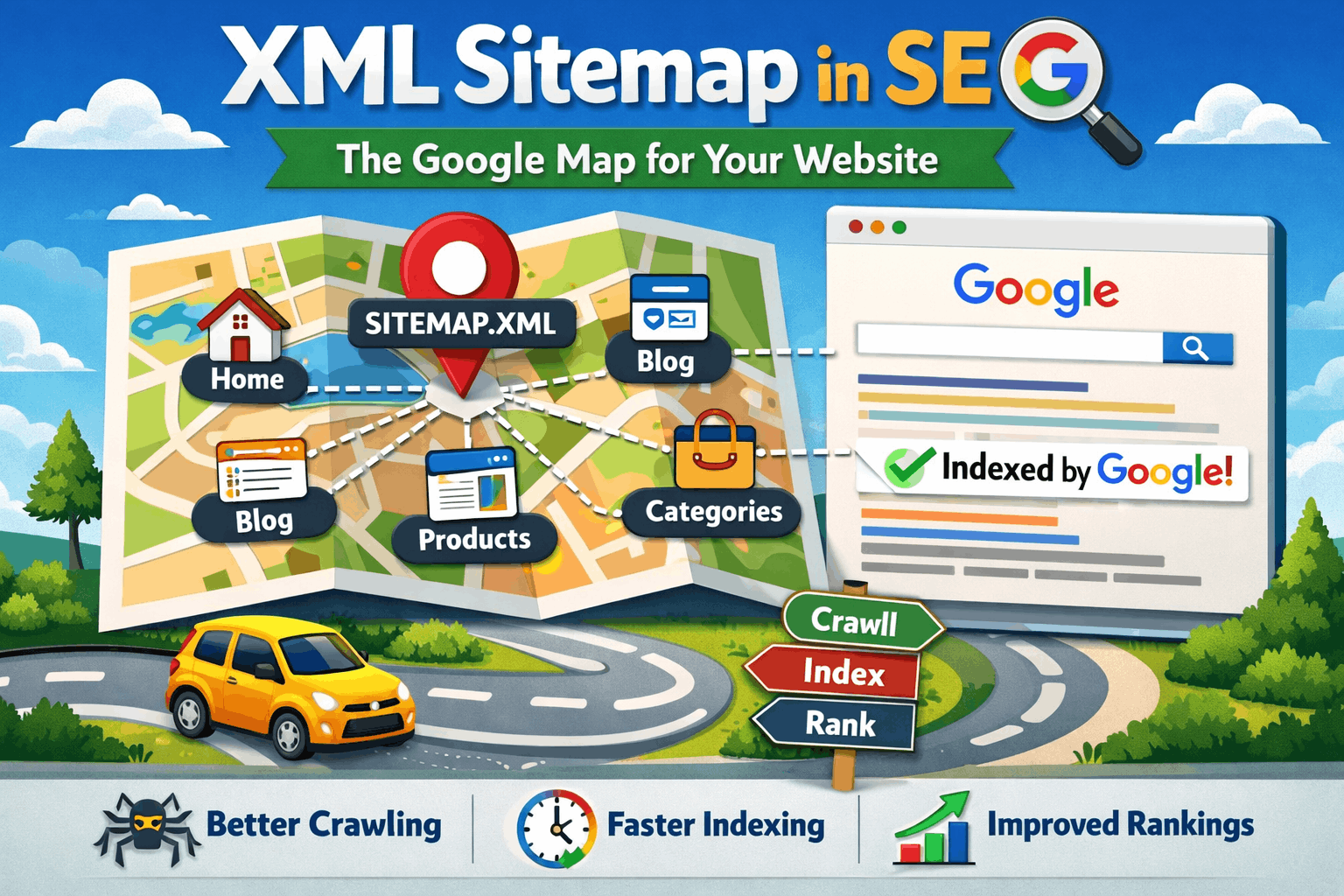
Ever feel like Google is ignoring half your website? Like you’ve published 50 amazing pages but Google only knows about 10? Yeah, that’s probably because you’re missing an XML sitemap. Let me fix that for you right now.
What the Heck Is an XML Sitemap? (No Tech Speak, I Promise)
Okay, imagine you built a massive shopping mall with 100 stores. But you didn’t put up any directory boards or maps. Customers wander around confused, missing amazing stores just because they don’t know they exist.
That’s your website without an XML sitemap.
An XML sitemap is literally a map of your website that you give to Google. It’s a file that lists all the important pages on your site and says, “Hey Google, these pages exist. Please check them out.”
Think of it as a detailed instruction manual that tells Google:
- Which pages you have
- When you last updated them
- How often they change
- Which ones are most important
The simple version? It’s a list that helps Google find and understand all your content without missing anything.
Why Should You Care About XML Sitemaps? (The Real Talk)
Let me be brutally honest with you.
Google is smart, but it’s not psychic.
Just because you published a page doesn’t mean Google automatically knows about it. Google uses little programs called “crawlers” (or “spiders”) that hop from link to link discovering pages.
But here’s the problem:
What if you have pages with no links pointing to them? What if your website structure is confusing? What if you have thousands of pages?
Without an XML sitemap, Google might:
- Miss important pages completely
- Take weeks or months to discover new content
- Not understand which pages matter most
- Waste time crawling unimportant pages
With an XML sitemap, you’re basically saying: “Google, forget playing detective. Here’s the complete list. Start here.”
It’s like the difference between letting a delivery guy search your entire neighborhood for your house versus giving him your exact address upfront.
What Does an XML Sitemap Actually Look Like?
Don’t worry, you won’t have to write code or anything scary.
An XML sitemap is just a text file with a .xml extension. It looks something like this:
<?xml version="1.0" encoding="UTF-8"?>
<urlset xmlns="http://www.sitemaps.org/schemas/sitemap/0.9">
  <url>
    <loc>https://yourwebsite.com/</loc>
    <lastmod>2026-02-20</lastmod>
    <changefreq>daily</changefreq>
    <priority>1.0</priority>
  </url>
  <url>
    <loc>https://yourwebsite.com/about</loc>
    <lastmod>2026-01-15</lastmod>
    <changefreq>monthly</changefreq>
    <priority>0.8</priority>
  </url>
</urlset>
Let me break down what each part means:
<loc> – The actual URL of your page (the location)
<lastmod> – When you last modified or updated that page
<changefreq> – How often the page changes (daily, weekly, monthly, yearly)
<priority> – How important this page is compared to other pages on your site (0.0 to 1.0)
Now, before you panic – you DON’T have to create this manually. There are tools that do this automatically for you. I’ll show you how in a bit.
Types of XML Sitemaps (Yes, There’s More Than One!)
Most websites just need one sitemap. But if you have a big site with different types of content, you might want specialized sitemaps.
Regular XML Sitemap
This is your standard sitemap listing all your regular pages – homepage, about page, blog posts, service pages, etc.
When to use it: Always. Every website needs this.
Video Sitemap
If you have videos on your site (embedded YouTube videos, hosted videos, etc.), a video sitemap helps Google understand what your videos are about.
When to use it: If videos are important to your content strategy.
Image Sitemap
If you have lots of images (like a photography site, e-commerce store, portfolio), an image sitemap helps Google discover and index all your images.
When to use it: If images are crucial to your business.
News Sitemap
Special sitemap for news websites that want to appear in Google News.
When to use it: Only if you run a news publication.
For 99% of websites, you just need a regular XML sitemap. Don’t overcomplicate things.
What Should You Include in Your XML Sitemap?
This is where people mess up. They either include too much or too little.
Here’s what SHOULD be in your sitemap:
- Your homepage
- Important service or product pages
- Blog posts and articles
- Category pages
- Any page you want people to find through Google
Here’s what should NOT be in your sitemap:
- Duplicate pages (same content, different URLs)
- Pages blocked by robots.txt
- Redirect pages (pages that automatically send people somewhere else)
- Pages with “noindex” tags (pages you’ve told Google not to index)
- Thank you pages after form submissions
- Admin pages, login pages, or private pages
- Pages with thin or low-quality content
The golden rule: Only include pages that you want Google to show in search results.
Think of it like inviting people to your house. You only show them the rooms you want them to see, not your messy closet or unfinished basement.
How to Create an XML Sitemap (The Easy Way)
You have three main options here. I’ll start with the easiest.
Option 1: Use a Plugin (For WordPress Users)
If you use WordPress (like most of the internet), this is ridiculously easy.
Yoast SEO Plugin:
- Install Yoast SEO (it’s free)
- It automatically creates a sitemap for you
- Find it at: yourwebsite.com/sitemap_index.xml
- Done. Literally that easy.
Rank Math Plugin:
- Install Rank Math (also free)
- Automatically creates your sitemap
- Find it at: yourwebsite.com/sitemap_index.xml
- You can customize what’s included in settings
All in One SEO Plugin:
- Same deal. Install, and it creates your sitemap automatically.
I recommend Yoast or Rank Math. They’re the most popular and reliable.
Option 2: Use Online Sitemap Generators
Don’t have WordPress? No problem.
Free online tools:
- XML-Sitemaps.com – Enter your URL, it crawls your site, generates a sitemap
- Screaming Frog SEO Spider – Free for sites under 500 pages, super powerful
- Sitemap Writer Pro – Another good option
How it works:
- Go to the website
- Enter your website URL
- Click “Generate”
- Download the sitemap.xml file
- Upload it to your website’s root folder
Option 3: Manual Creation (Not Recommended)
You can technically write an XML sitemap by hand using the code format I showed earlier.
But honestly? Why would you? It’s 2026. Let the tools do it.
Only do this if:
- You have a tiny site (like 5 pages)
- You enjoy pain
- You’re learning for educational purposes
How to Submit Your XML Sitemap to Google
Creating the sitemap is only half the battle. Now you need to tell Google about it.
Step 1: Upload Your Sitemap
First, make sure your sitemap is accessible online.
If you used a WordPress plugin, it’s already there. Just type: yourwebsite.com/sitemap.xml in your browser. If you see code (the XML format), you’re good.
If you generated it using a tool, upload the file to your website’s root directory using FTP or your hosting control panel.
Your sitemap should be accessible at:
- yourwebsite.com/sitemap.xml OR
- yourwebsite.com/sitemap_index.xml
Step 2: Submit to Google Search Console
Don’t have Google Search Console? Stop reading right now and set it up. It’s free and essential. Go to search.google.com/search-console and add your website.
Once you’re in Google Search Console:
- Click on “Sitemaps” in the left menu
- You’ll see a box that says “Add a new sitemap”
- Type in your sitemap URL (usually just “sitemap.xml”)
- Click “Submit”
- Wait a few minutes
Google will now start checking your sitemap and crawling the pages listed in it.
You’ll see a status that says:
- “Success” – Perfect! Google found your sitemap
- “Couldn’t fetch” – Something’s wrong with the URL
- “Error” – There’s a problem with your sitemap format
Step 3: Submit to Bing Too (Bonus Points)
Don’t forget about Bing! It’s not as big as Google, but it still sends traffic.
Go to Bing Webmaster Tools (free), add your site, and submit your sitemap the same way.
How to Check If Your Sitemap Is Working
Submitting your sitemap doesn’t guarantee Google will index everything immediately. But you can track the progress.
In Google Search Console
- Go to “Sitemaps” section
- Look at the “Discovered URLs” column – This shows how many URLs Google found in your sitemap
- Check the “Coverage” or “Pages” report – This shows which pages are actually indexed
What you’re looking for:
- Are most of your pages discovered?
- Are they actually getting indexed?
- Are there any errors?
Manual Check
Type this in Google: site:yourwebsite.com
This shows all the pages Google has indexed from your site. Compare this number with how many pages you have.
If Google indexed 50 pages but you have 100, something’s wrong.
Common XML Sitemap Mistakes (And How to Fix Them)
I’ve seen people make these mistakes over and over. Learn from their pain.
Mistake 1: Including Every Single Page
More is not better. I’ve seen sitemaps with 10,000 pages where half of them are garbage – tags, archives, author pages, search results.
The fix: Only include important, unique pages that provide value.
Mistake 2: Never Updating Your Sitemap
You publish new content but your sitemap still shows old stuff from 2020.
The fix: If using a plugin, it updates automatically. If not, regenerate your sitemap monthly.
Mistake 3: Having a Broken Sitemap
Your sitemap link returns a 404 error, or the XML format is broken.
The fix: Test your sitemap URL in a browser. Make sure you see XML code, not an error page.
Mistake 4: Forgetting the Robots.txt File
Your sitemap should be mentioned in your robots.txt file so Google can find it easily.
The fix: Add this line to your robots.txt file:
Sitemap: https://yourwebsite.com/sitemap.xmlMistake 5: Having Multiple Conflicting Sitemaps
You have three plugins all creating different sitemaps. Google gets confused.
The fix: Use ONE sitemap method. Disable others.
Mistake 6: Including “Noindex” Pages
You tell Google not to index a page, but then include it in your sitemap. Mixed signals.
The fix: Check your sitemap. Remove any pages that have noindex tags.
XML Sitemap Size Limits (Important!)
Google has rules about sitemap size. You can’t just throw everything in one massive file.
Google’s limits:
- Maximum 50MB (uncompressed)
- Maximum 50,000 URLs per sitemap file
What if you have more than 50,000 pages?
You create a “Sitemap Index” file. This is basically a sitemap of sitemaps.
It looks like this:
<?xml version="1.0" encoding="UTF-8"?>
<sitemapindex xmlns="http://www.sitemaps.org/schemas/sitemap/0.9">
  <sitemap>
    <loc>https://yourwebsite.com/sitemap1.xml</loc>
  </sitemap>
  <sitemap>
    <loc>https://yourwebsite.com/sitemap2.xml</loc>
  </sitemap>
</sitemapindex>
Good news: Most sitemap tools handle this automatically if you exceed the limit.
Does Every Website NEED an XML Sitemap?
Short answer: Yes, 99% of websites should have one.
Long answer: There are rare exceptions.
You definitely need a sitemap if:
- You have more than 10 pages
- You publish new content regularly
- You have pages that aren’t well-linked internally
- Your site is new (less than 6 months old)
- You have complex site architecture
- You care about SEO (which you do, since you’re reading this)
You might skip it if:
- You have a tiny site (like 3 pages)
- Every page is linked from your homepage
- You don’t care about search traffic
But honestly? Even a 5-page site benefits from having a sitemap. It takes 5 minutes to set up. Why not?
XML Sitemap vs HTML Sitemap (What’s the Difference?)
People often confuse these. They’re completely different things.
XML Sitemap
- For search engines (Google, Bing, etc.)
- Machine-readable code
- Hidden from regular visitors
- Lists all important pages
- Located at yourwebsite.com/sitemap.xml
HTML Sitemap
- For human visitors
- Regular webpage
- Visible on your site (usually in footer)
- Organized list of links to all pages
- Located at yourwebsite.com/sitemap or /sitemap.html
Do you need both?
You MUST have an XML sitemap for SEO. An HTML sitemap is optional but helpful for user navigation, especially on large sites.
How Often Should You Update Your XML Sitemap?
If you use a plugin: You don’t have to do anything. It updates automatically every time you publish or edit content.
If you manually create it: Update it:
- Every time you add new pages
- Every time you delete pages
- At least once a month if you’re actively publishing
Pro tip: Set a monthly reminder on your phone to check your sitemap in Google Search Console.
Will an XML Sitemap Improve My Rankings?
Let’s be real here.
An XML sitemap does NOT directly improve your rankings.
Google doesn’t look at your sitemap and say, “Wow, what a beautiful sitemap! Let’s rank this site #1!”
But here’s what it DOES do:
It helps Google find and index your pages faster. And you can’t rank if you’re not indexed.
Think of it like this:
You wrote an amazing book (your website content). An XML sitemap is like putting your book on the shelf in the library (getting indexed). It doesn’t guarantee people will read it (rank high), but at least now it’s available to be found.
Without the sitemap, your book might be sitting in a box in the back room where nobody knows it exists.
Advanced XML Sitemap Tips (For Overachievers)
You’ve got the basics down. Want to level up? Here are some advanced tips.
Tip 1: Use Priority Strategically
The priority value (0.0 to 1.0) tells Google which pages you think are most important.
My approach:
- Homepage: 1.0
- Main service/product pages: 0.9
- Category pages: 0.8
- Blog posts: 0.7
- Less important pages: 0.5
Reality check: Google doesn’t always respect priority values, but it doesn’t hurt to set them.
Tip 2: Update the Change Frequency Accurately
Don’t lie to Google. If your page changes daily, mark it as “daily.” If it’s static, mark it as “yearly.”
Be honest:
- Homepage: daily or weekly
- Blog: weekly or monthly
- Static pages (About, Contact): yearly
Tip 3: Split Sitemaps by Content Type
Instead of one massive sitemap, create separate ones:
- sitemap-pages.xml (for static pages)
- sitemap-posts.xml (for blog posts)
- sitemap-products.xml (for e-commerce)
Then combine them in a sitemap index.
Why? Easier to manage and troubleshoot.
Tip 4: Monitor Errors Regularly
Check Google Search Console weekly. Look for:
- Pages in sitemap but not indexed
- Soft 404 errors
- Redirect chains
- Server errors
Fix these ASAP.
Tip 5: Use Last Modified Dates Accurately
The <lastmod> tag should reflect when you actually updated the content, not just republished it.
Why? Google uses this to prioritize which pages to re-crawl.
Troubleshooting: When Your Sitemap Isn’t Working
Google Search Console shows errors? Don’t panic. Here’s how to fix common issues.
“Sitemap could not be read”
Problem: Google can’t access your sitemap file.
Solutions:
- Check if the URL is correct
- Make sure the file isn’t blocked by robots.txt
- Verify file permissions (should be readable)
- Try accessing the sitemap yourself in a browser
“Sitemap contains errors”
Problem: The XML format is broken.
Solutions:
- Validate your sitemap using an XML validator tool
- Check for special characters that need encoding
- Make sure all tags are properly closed
- Regenerate the sitemap using a plugin or tool
“Submitted URL not found (404)”
Problem: Pages in your sitemap don’t exist or return errors.
Solutions:
- Remove deleted pages from your sitemap
- Fix broken URLs
- Check for typos in URLs
- Update old URLs that have changed
“Discovered but not indexed”
Problem: Google found the pages but chose not to index them.
Solutions:
- Check if pages have thin or duplicate content
- Verify there’s no noindex tag
- Make sure content is high quality and unique
- Improve page loading speed
“Indexed, not submitted in sitemap”
Problem: Google found pages not listed in your sitemap.
Solutions:
- This is actually okay if the pages are quality pages
- Add them to your sitemap if they’re important
- Block them if they’re low-quality or duplicate pages
Real-World Example: How a Sitemap Helped a Local Business
Let me share a quick story.
A friend runs a bakery website with 200 pages (products, recipes, blog posts, location pages). They were getting maybe 100 visitors a month from Google.
The problem? Only 45 pages were indexed. Google had no idea the other 155 pages existed.
What we did:
- Created a proper XML sitemap using Yoast
- Submitted it to Google Search Console
- Fixed some internal linking issues
- Waited 2 weeks
Results:
- 187 out of 200 pages got indexed
- Organic traffic jumped to 850 visitors per month
- Orders increased by 40%
The sitemap didn’t magically rank them higher. But it helped Google discover all their amazing content that was previously hidden.
That’s the power of an XML sitemap.
Quick Checklist: Is Your XML Sitemap Optimized?
Run through this checklist right now:
✓ My sitemap is accessible at mywebsite.com/sitemap.xml
✓ I’ve submitted it to Google Search Console
✓ It only includes pages I want indexed
✓ It doesn’t include noindex pages, 404s, or redirects
✓ It’s updated automatically (if using a plugin) or regularly (if manual)
✓ It’s mentioned in my robots.txt file
✓ It’s under 50MB and 50,000 URLs
✓ I check Google Search Console monthly for errors
✓ The lastmod dates are accurate
✓ Priority values make sense
If you can check most of these boxes, you’re in great shape!
Your Action Plan (Do This Today)
Don’t let this be another article you read and forget. Take action right now.
In the next 30 minutes:
- Check if you have a sitemap by going to yourwebsite.com/sitemap.xml
- If you don’t have one, install Yoast SEO or Rank Math (if using WordPress)
- If not on WordPress, use XML-Sitemaps.com to generate one
- Submit your sitemap to Google Search Console
- Set a calendar reminder to check it monthly
In the next week:
- Review what pages are in your sitemap
- Remove any that shouldn’t be there
- Add any important ones that are missing
- Check Google Search Console for errors
In the next month:
- Monitor which pages are getting indexed
- Fix any errors that appear
- Make sitemap checking a monthly habit
Final Thoughts: The Boring Thing That Makes a Big Difference
XML sitemaps aren’t sexy. They’re not the fun part of SEO. Nobody brags about their sitemap at dinner parties.
But you know what? They’re essential.
It’s like changing the oil in your car. Boring? Yes. Important? Absolutely. Will your car break down without it eventually? Probably.
Here’s what I want you to remember:
An XML sitemap is Google’s roadmap to your content. Without it, you’re hoping Google stumbles upon your pages by accident. With it, you’re guiding Google exactly where you want them to go.
It takes 30 minutes to set up and literally never think about it again (if using a plugin). That’s 30 minutes for potentially months or years of better SEO performance.
And here’s the beautiful thing: while your competitors are publishing content without proper sitemaps, wondering why they’re not ranking, you’ll be sitting pretty with all your pages properly indexed and discoverable.
That’s a competitive advantage that costs nothing but a little bit of your time today.
Whether you’re managing SEO yourself or working with an SEO freelancer in Bangalore or anywhere else, make sure a proper XML sitemap is part of your strategy. It’s one of those foundational elements that separates amateur SEO from professional SEO.
So what are you waiting for? Close this article, create or fix your sitemap, and give Google the map it needs to discover your amazing content.
Your future self (and your search rankings) will thank you.

I am Abhijeet Banerjee a dedicated SEO Specialist focused on driving organic growth and improving search visibility. I use a data-driven approach to technical SEO, content strategy, and link building to deliver measurable results and increase ROI for clients and projects